
Multi-Branch Clinic Management: Best Software Features to Look For
Compare the branch-aware scheduling, patient records, staff permissions, reporting, and patient access features clinics need when evaluating multi-branch management software.
Adding locations can make a clinic more convenient for patients, but it also creates more operational detail to coordinate. Doctors rotate between sites, schedules need to match the correct branch, staff need appropriate access, and managers need a clear view of activity across the organization.
Multi-branch clinic management software should make each location easier to run without splitting the clinic into disconnected systems. Here are the features to evaluate—and how ClinicOS approaches them.
1. Branch-aware setup and day-to-day workflows
Each location should have a clear identity in the system: its own name, contact details, staff workflow, and patient entry point. When information is attached to the right branch, teams are less likely to direct a patient to the wrong location or enter activity under the wrong site.
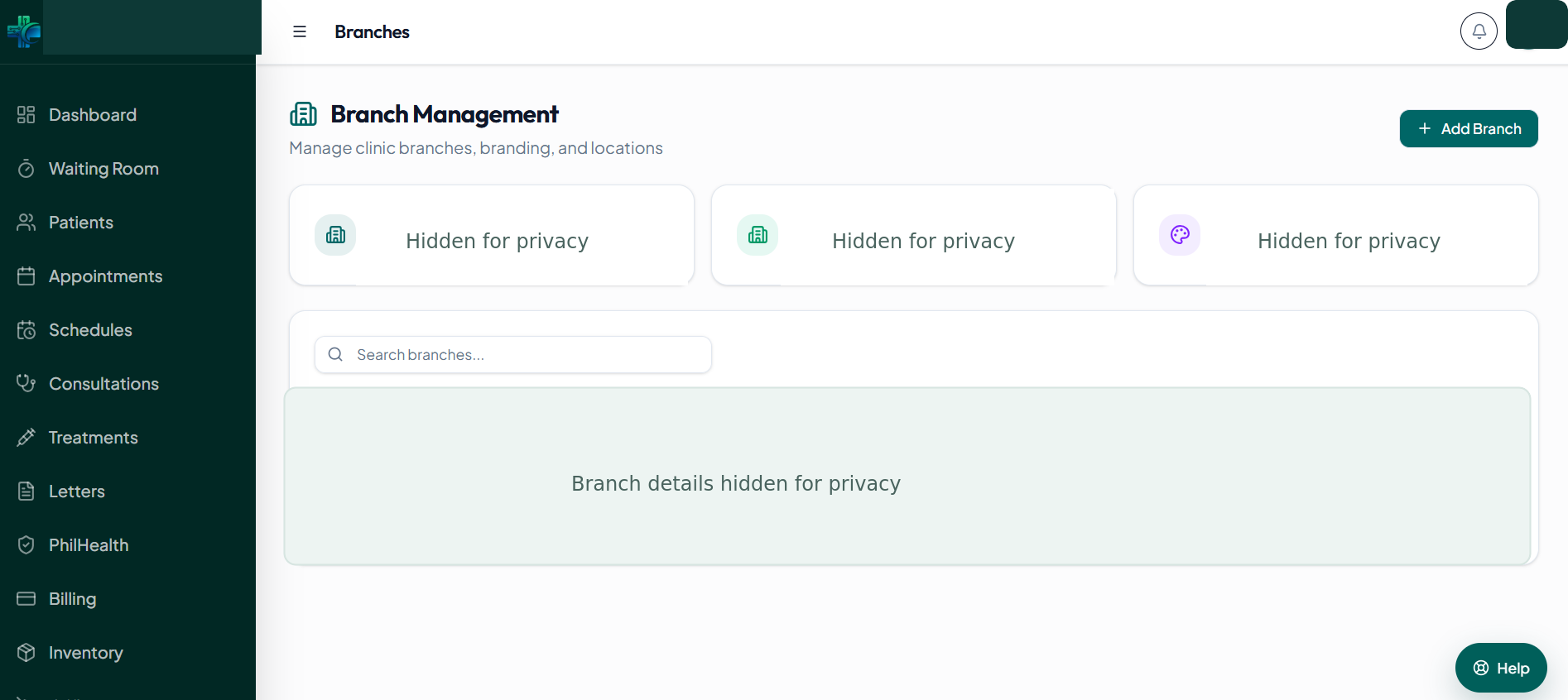
ClinicOS includes branch management from a shared clinic workspace. The Branch Management screen helps administrators maintain location details and branding. Branch availability depends on the ClinicOS plan and account setup.
2. Doctor schedules tied to the right location
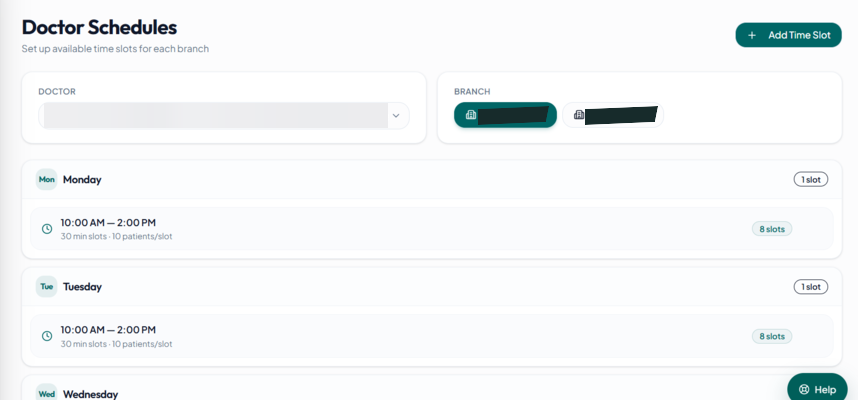
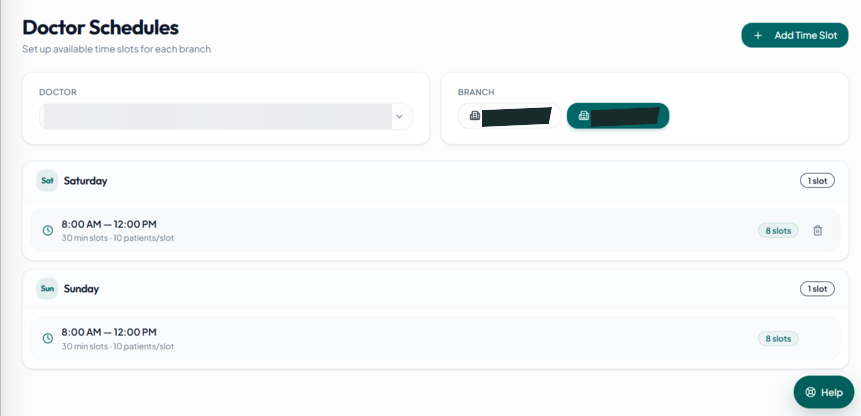
A shared calendar alone is not enough if it cannot show where a doctor is working. Look for schedules that can be organized by both provider and branch, with the available times based on the clinic’s actual configuration.
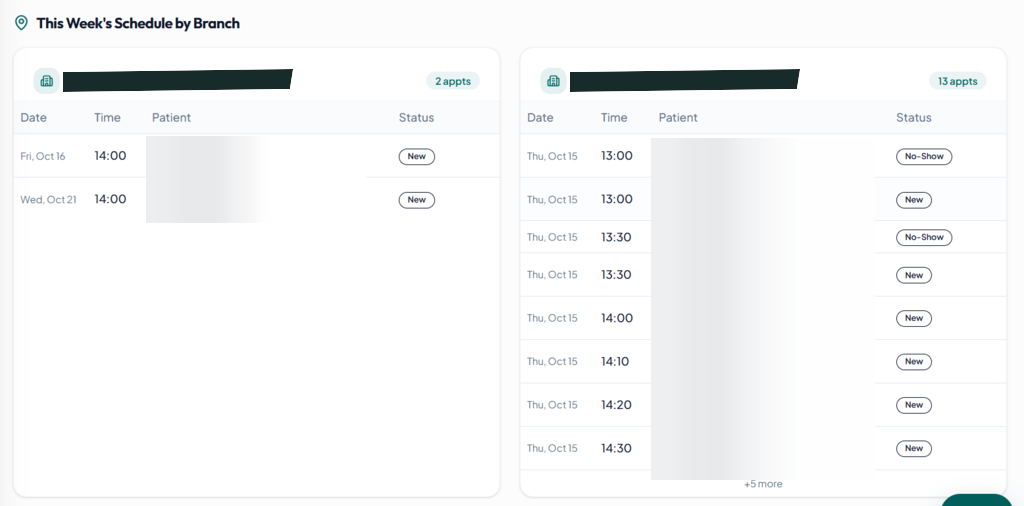
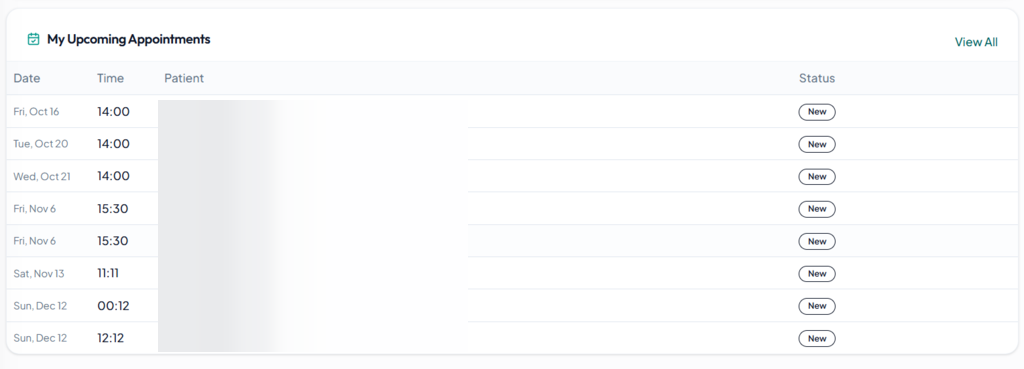
ClinicOS supports doctor- and branch-aware scheduling. Staff can review appointment information by branch, doctor, and date. Patient-facing appointment requests use the branch’s configured doctors, schedules, and capacity; requests remain pending until clinic staff review and confirm them.
When comparing systems, test a realistic week: a doctor working at two sites, a schedule change, a walk-in, and a request that needs staff confirmation. Check that the correct location remains visible at each step.
3. Patient records that stay organized across visits
Patients may visit different branches over time. Ask how the software matches returning patients, prevents duplicate records, and helps authorized staff understand relevant visit history without confusing one location’s activity with another’s.
ClinicOS connects patient records and visit workflows in the clinic workspace. Clinics should configure staff access carefully and confirm that their record-handling process fits their own privacy policies and responsibilities under the Data Privacy Act.
4. Access controls for people and locations
Not every team member needs the same access. A multi-branch system should let an administrator assign appropriate roles, review who can access sensitive information, and understand how important record activity is monitored.
ClinicOS provides role-based access, with audit and compliance tools available on eligible plans. Before rollout, map the roles used at each location—doctors, nurses, reception, billing, and administrators—and test each role with a sample account. Do not assume that a software setting alone makes a clinic compliant; staff practices and clinic policies still matter.
5. Branch-level reporting with an organization-wide view
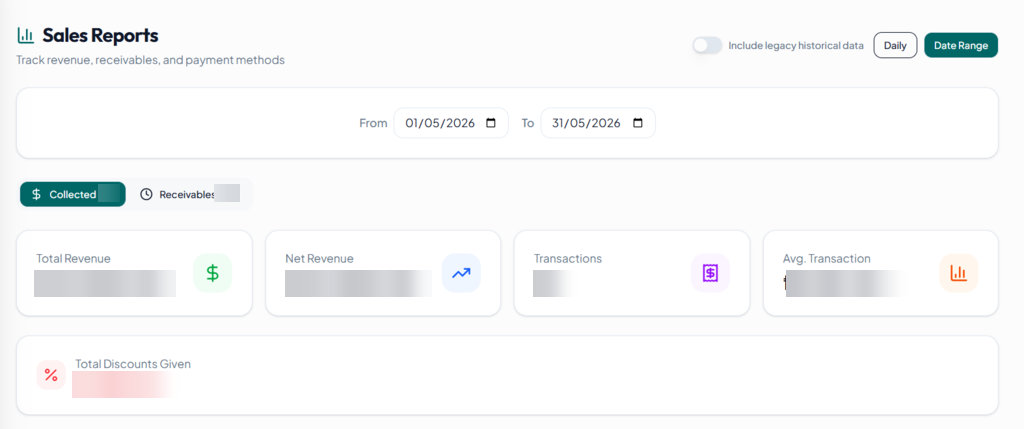
Clinic owners often need two perspectives: how a location is operating and how the organization is doing overall. Evaluate whether reports can help you review collected revenue, receivables, payment methods, and activity by branch, and whether the results can be compared using consistent date ranges.
ClinicOS provides sales reporting and branch-aware operational visibility from the clinic system. Available views depend on the configured workspace and plan. During a demo, check that report filters match the questions your managers actually ask; do not rely on a dashboard total without understanding which branches and dates it includes.
6. Patient access that points to the correct branch
Patient-facing links should make it clear which location a patient is contacting. Branch-specific links or QR codes can reduce confusion when clinics share information at reception, in messages, or on printed materials.
ClinicOS’s Patient Portal supports branch-specific access. When the clinic enables and configures the portal, patients can use the appropriate clinic link or QR code to access the portal, submit appointment requests, and check in on arrival where that workflow is enabled. Staff remain responsible for reviewing appointment requests and confirming them.
See the ClinicOS Patient Portal guide for more about the patient-side experience.
7. Connected appointments, records, and billing
When each branch uses separate spreadsheets or tools, staff may have to re-enter the same details and reconcile information manually. Look for a system that connects the patient record with appointments, consultations, and billing, while keeping the location associated with the work.
ClinicOS brings these clinic workflows together in one browser-based system. This can give teams a consistent place to work across locations, subject to the clinic’s configuration, plan, and staff processes.
8. Plan limits that match your real structure
Before choosing software, count more than locations. List the number of doctors, staff members at each branch, expected patient volume, and any features that are essential to your workflow. A plan designed for one doctor rotating between sites may have different limits from a multi-doctor team.
ClinicOS plans have different branch, doctor, and staff allowances. Review the ClinicOS clinic management overview and confirm the current plan details against your clinic’s structure before subscribing.
Questions to ask during a software demo
- Can I see one doctor’s schedule across two branches?
- Can staff quickly tell which branch an appointment or patient activity belongs to?
- How do roles and permissions work for doctors, reception, and billing?
- Can managers review branch activity and organization-wide reporting?
- What happens when a patient visits more than one location?
- Which plan limits apply to our number of doctors, staff, and branches?
- Which Patient Portal, audit, and reporting features require a particular plan or setup?
Use your own clinic’s workflow as the test. Ask staff from more than one branch to complete the same tasks, then compare clarity, access, and the effort required to coordinate changes.
Manage multiple locations with ClinicOS
ClinicOS is designed to help Philippine clinics coordinate branch management, scheduling, patient records, billing, staff access, and patient-facing tools from one clinic system. Specific capabilities and limits depend on the selected plan and clinic configuration.
Start with a free ClinicOS account, review the current plan details, and confirm that they fit your doctors, staff, and locations before moving your clinic’s daily workflows.
Frequently asked questions
Related resources
Bring your clinic branches into one connected workflow
Create a free ClinicOS account to explore the clinic workflow, then compare current plan limits with your doctor, staff, and branch requirements.
Start ClinicOS FreeWant a step-by-step walkthrough first? Download the free clinic setup guide.